Accessing the cluster
__NOTOC__
| < Home | Storage and data transfer > |
|
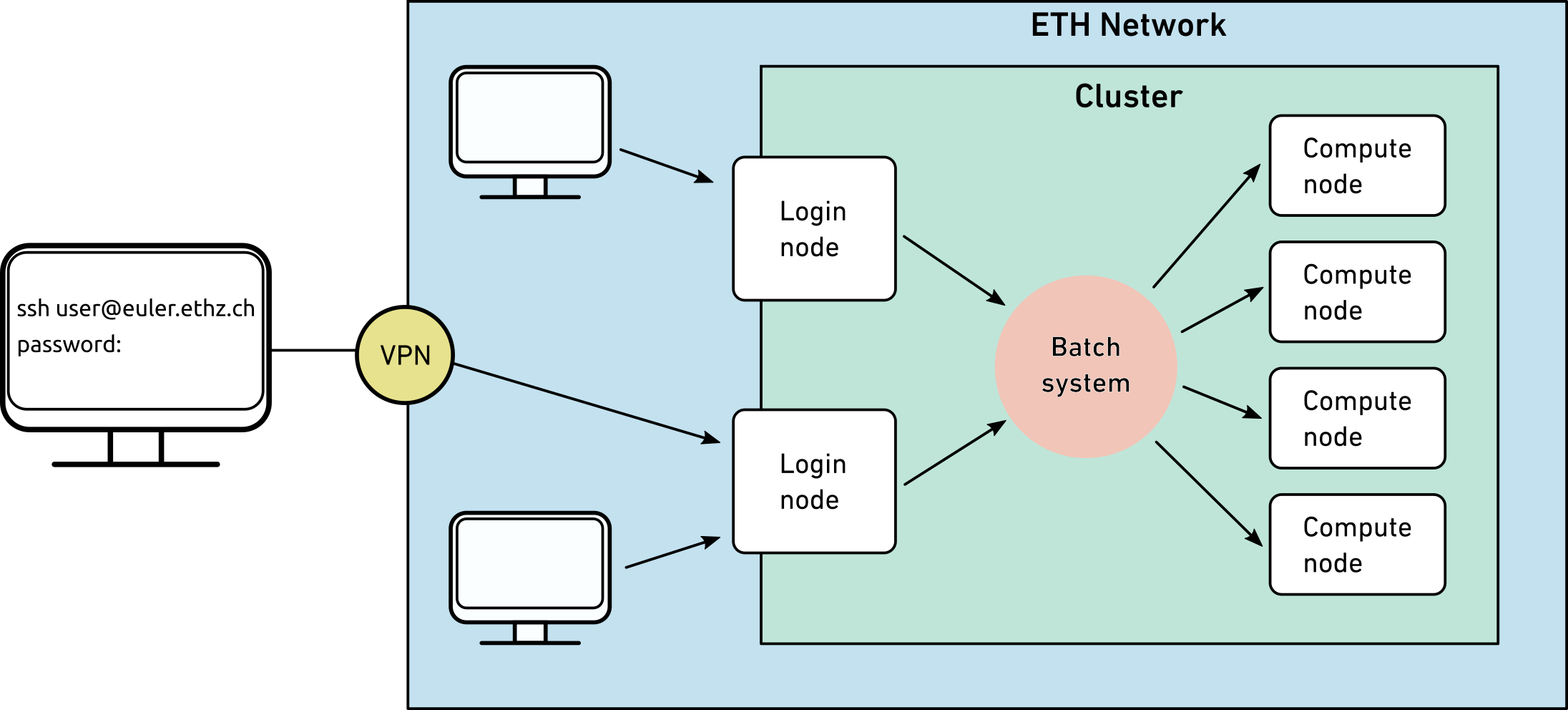
## Prerequisites {#prerequisites} - A valid ETH account - Being connected to an ETH network (either through wifi or using VPN) - Local computer with an SSH client - Linux and macOS contain SSH client in the operating system - Windows users need to install a third party SSH client, e.g., MobaXterm, PuTTY, Git BASH or Windows Subsystem Linux (WSL) - An X11 server for graphical user interface (GUI) (optional) |
Who can access the cluster ?
Euler CPU |
Euler GPU |
|
|---|---|---|
Shareholders who invest in the cluster resources |
| ✓ |
| ✓ |
External collaborators of shareholders |
| ✓ |
| ✓ |
Guest users |
| ✓ |
| ✕ |
External collaborators
Members of other institutions who have a collaboration with a research group at ETH may use the clusters for the purpose of said collaboration
- Their counterpart (“sponsor”) at ETH can create an ETH guest account, e-mail address and VPN service for them
- Then, they can access Euler like members of ETH
How to access the cluster ?
From a terminal (Linux, MacOS, Git BASH, WSL)
- Make sure that you are connected to the ETH network, either by using the on-side wifi/Ethernet or by using a VPN
- Start a terminal
- Use ssh command to connect to the login node of Euler
$ ssh username@euler.ethz.ch
- Use your ETH credentials to log in (not the wi-fi password, that is usually different)
For Windows users
You have several options and tools available to you :
- How to access the cluster with MobaXterm: MobaXterm is a convenient tool for accessing the cluster as it includes an SSH client, a local shell and data transfer functions.
- How to access the cluster with PuTTY: PuTTY is an SSH client and does not provide a local shell. WinSCP can import a saved PuTTY session to create a connection for data transfer.
- To run Jupyter Notebook or VSCode on Euler
For all operating systems
Upon the first login, a verification code should be sent to your ETH email address (username@ethz.ch). Enter the verification code to the prompt :
An access code has been sent to your ETH email address.
Enter the access code at the prompt below.
If you do not receive the access code within a few minutes,
then contact us by opening a ticket at
http://smartdesk.ethz.ch
Access code (ending in ******Ls):
After a successful login with password, generate SSH keys for passwordless login.
To use a GUI on the cluster
A word about security and legal compliance
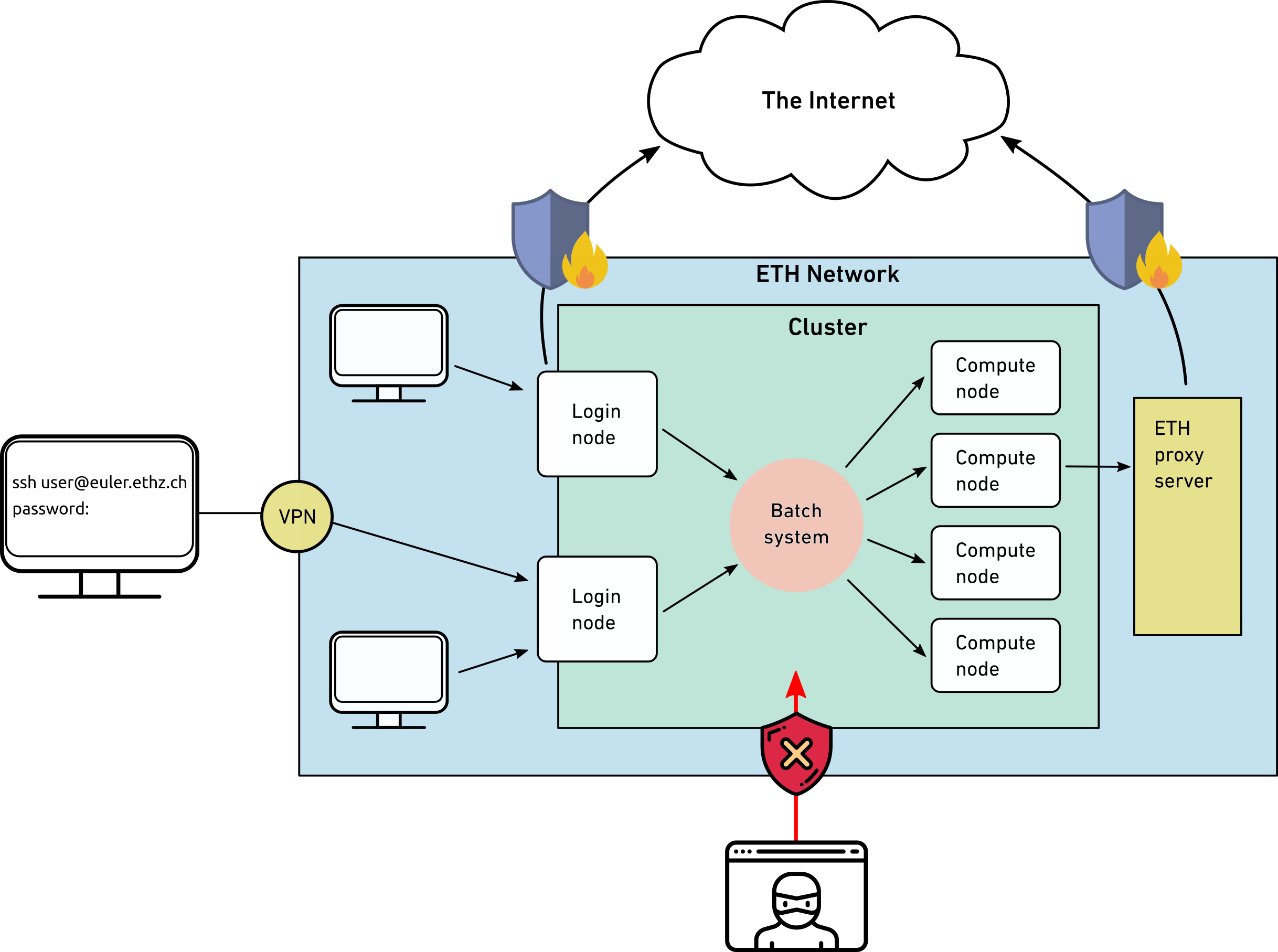
- For security reasons, the cluster is accessible only within the ETH
network. Therefore, to connect from outside of the ETH network to
the cluster, establish first a VPN
connection. Then, connect to
the cluster through SSH.
- For security reasons, the access to external services (e.g. git,
wget, pip install,...) on Euler's compute nodes is NOT enables by
default. To connect from a compute node to an external service, use
the ETH proxy service:
$ module load eth_proxy
### Legal Compliance {#legal_compliance}
The HPC clusters are subject to ETH’s acceptable use policy for IT
resources (Benutzungsordnung für Telematik
(BOT)), in
particular:
- Cluster accounts are strictly personal
- DO NOT share your account (password, sshkeys) with anyone
- DO NOT use someone else’s account, even if they say it’s OK
- If you suspect that someone used your account, change your
password and contact cluster
support
|
|
Consequences:
* In case of abuse, the offender’s account may be blocked temporarily or closed
* System administrators are obliged by law to investigate abusive or illegal activities and report them to the relevant authorities
SSH Keys
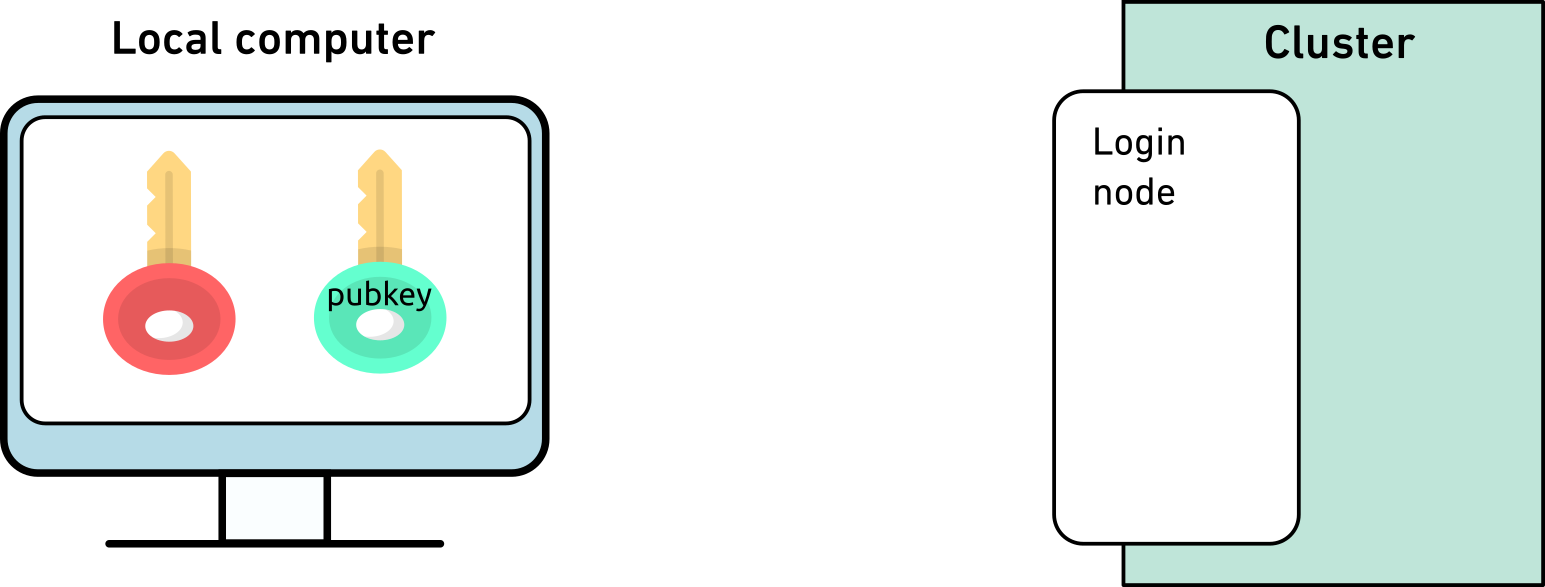
SSH keys allows passwordless login which is useful for file transfers, automated tasks and running interactive tools on the cluster. When used properly, SSH keys are much safer than passwords. SSH keys always come in pairs:
- A private key, stored on your local workstation (and nowhere else!)
- A public key, stored on the computer(s) you want to connect to
You can generate as many pairs as you like, but we recommend to have a single one per device that you are using. Keep in mind that :
- Keys should be protected with a passphrase
- You can unlock keys with SSH key management tools such as ssh-agent and keychain
Step 1: Create your keys
 |
- First, verify whether logging in with password works
- If you don't have an SSH key pair already, then generate a key pair
with the ed25519 algorithm
$ ssh-keygen -t ed25519
- Enter a passphrase to protect your SSH keys
|
The output should give you the location of where the ssh keys has been stored, if you didn't specify any yourself. Please store this path and make sure that the paths provided in the next commands of this tutorial are matching it.
Step 2: Copy the public key to the cluster
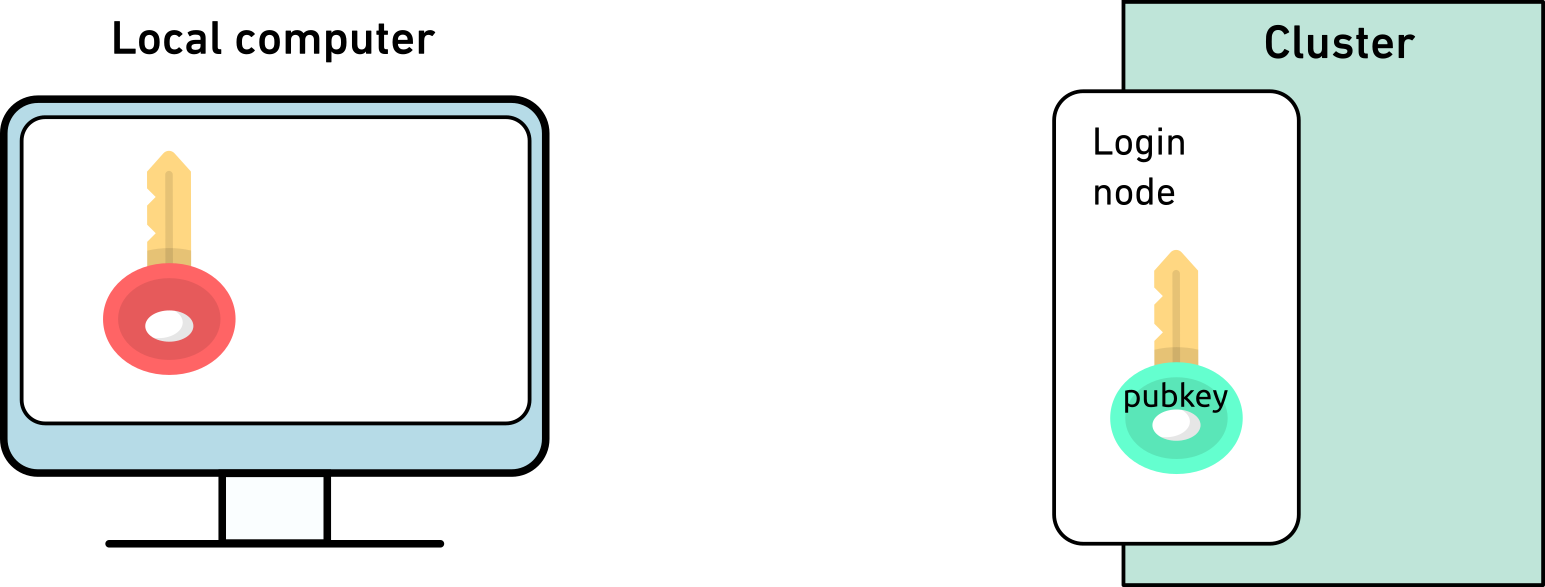 |
$ ssh-copy-id -i $HOME/.ssh/id_ed25519.pub username@euler.ethz.ch
|
Next time you login, you can type
$ ssh euler.ethz.ch
Step 3: SSH key management with SSH Agent
The final step is to add the key to the ssh agent. This step has to be done each time that you turn off and then turn on your personal workstation. The advantage is that you would need to do it only once per session, all of the subsequent logins should be password-less. Here are the steps :
$ eval `ssh-agent`
Agent pid 17906
$ ssh-add $HOME/.ssh/id_ed25519
Enter passphrase for id_ed25519:
Identity added: id_ed15519 (username@local-computer-name)
- all of the next connections to Euler should not require any password or passphrase until you turn your computer off.
Further reading
| < Home | Storage and data transfer > |