Storage systems
A summary of general questions about file systems, storage and file transfer can be found in our FAQ. If you have questions or encounter problems with the storage systems provided on our clusters or file transfer, then please contact .
/cluster/home/username
The path is also saved in the variable $HOME. The permissions are set
that only you can access the data in your home directory and no other
user. Your home directory is limited to 50 GB and a maximum of 500'000
files and directories (inodes). The content of your home is saved every
hour and there is also a nightly backup (tape).
/cluster/scratch/username
The path is also saved in the variable $SCRATCH. It is only visible
(mounted) when you access it. Accessing it with a graphical tools might
require the full path, as it might not be visible in the
/cluster/scratch top-level directory. Before using your personal
scratch directory, carefully read the usage
rules; also available in
"$SCRATCH/__USAGE_RULES__".
Your personal scratch directory has a disk quota of 2.5 TB and a maximum of 1'000'000 files and directories (inodes). There is no backup for the personal scratch directories and they are purged on a regular basis (see usage rules).
For personal scratch directories, there are two limits (soft and hard quota). When reaching the soft limit (2.5 TB) there is a grace period of one week where users can use 10% more than their allowed capacity (this upper limit is called hard quota), which applies to both, the number of inodes and space. If the used capacity is still above the soft limit after the grace period, then the current directory is locked for new writes until being again below the soft quota.
/cluster/project/groupname
Access rights and restriction is managed by the shareholder group. We recommend to use ETH groups for this purpose. If you are interested in getting more information and prices of the project storage, then please contact .
/cluster/work/groupname
Access rights and restriction is managed by the shareholder group. We recommend to use ETH groups for this purpose. The directory is visible (mounted), only when accessed. If you are interested in getting more information and prices of the work storage, then please contact .
For /cluster/work directories, there are two limits (soft and hard quota). When reaching the soft limit there is a grace period of one week where users can use 10% more than their allowed capacity (this upper limit is called hard quota), which applies to both, the number of inodes and space. If the used capacity is still above the soft limit after the grace period, then the current directory is locked for new writes until being again below the soft quota.
/scratch
You can either create a directory in local scratch yourself, as part of a batch job, or you can use a directory in local scratch, which is automatically created by the batch system. Slurm creates a unique directory in local scratch for every job. At the end of the job, Slurm is also taking care of cleaning up this directory. The path of the directory is stored in the environment variable
$TMPDIR
If you use $TMPDIR, then you need to request scratch
space from the batch
system.
External storage
Central NAS/CDS
Groups who have purchased storage on the central NAS of ETH or CDS can ask the storage group of IT services to export it to our HPC clusters. There are certain requirements that need to be fulfilled in order to use central NAS/CDS shares on our HPC clusters.
- The NAS/CDS share needs to be mountable via NFS (shares that only support CIFS cannot be mounted on the HPC clusters).
- The NAS/CDS share needs to be exported to the subnet of our HPC clusters (please contact ID Systemdienste and ask them for an NFS export of your NAS/CDS share).
- Please carefully set the permissions of the files and directories on your NAS/CDS share if other cluster users should not have read/write access to your data.
NAS/CDS shares are then mounted automatically when you access them. The mount-point of such a NAS/CDS share is
/nfs/servername/sharename
A typical NFS export file to export a share to the Euler cluster would look like
# cat /etc/exports
/export 129.132.93.64/26(rw,root_squash,secure) 10.205.0.0/16(rw,root_squash,secure) 10.204.0.0/16(rw,root_squash,secure)
If you ask the storage group to export your share to the Euler cluster, then please provide them the above-shown information. If the NAS share is located on the IBM Spectrum Scale storage system, then please also ask for the following options to be set by the storage group:
PriviledgedPort=TRUE
Manage_Gids=TRUE
Please note that these options should only be applied to the Euler subnet. For a general overview on subnets and IP addresses please check the following wiki page. When a NAS share is mounted on our HPC clusters, then it is accessible from all the compute nodes in the cluster.
- NAS needs to support NFSv3 (this is currently the only NFS version that is supported from our side).
- The user and group ID's on the NAS needs to be consistent with ETH user names and group.
- The NAS needs to be exported to the subnet of our HPC clusters.
- Please carefully set the permissions of the files and directories on your NAS share if other cluster users should not have read/write access to your data.
We advise you to not use this path directly from your jobs. Rather, you should stage files to and from $SCRATCH.
You external NAS can then be accessed through the mount-point
/nfs/servername/sharename
A typical NFS export file to export a share to the Euler cluster would look like
# cat /etc/exports
/export 129.132.93.64/26(rw,root_squash,secure) 10.205.0.0/16(rw,root_squash,secure) 10.204.0.0/16(rw,root_squash,secure)
For a general overview on subnets and IP addresses please check the following wiki page.
The share is automatically mounted, when accessed.
- The LTS share needs to be mountable via NFS (shares that only support CIFS cannot be mounted on the HPC clusters).
- The LTS share needs to be exported to the LTS nodes of our HPC clusters (please contact ITS SD Backup group and ask them for an NFS export of your LTS share).
- Please carefully set the permissions of the files and directories on your LTS share if other cluster users should not have read/write access to your data.
The LTS share needs to be exported to the LTS nodes:
129.132.93.70(rw,root_squash,secure)
129.132.93.71(rw,root_squash,secure)
For accessing your LTS share, you would need to login to the LTS nodes in Euler with
ssh USERNAME@lts.euler.ethz.ch
Where USERNAME needs to be replaced with your ETH account name. LTS shares are then mounted automatically when you access them. The mount-point of such a LTS share is
/nfs/lts11.ethz.ch/shares/sharename(_repl)
or
/nfs/lts21.ethz.ch/shares/sharename(_repl)
depending if your share is located on lts11.ethz.ch or lts21.ethz.ch.
The users home directories are backed up every night and the backup has a retention time of 90 days. For project and work storage, we provide a weekly back up, with also 90 days retention time. If you have some data that you would like to exclude from the backup, then please create a subdirectory nobackup. Data stored in the nobackup directory will then be excluded from the backup. The subdirectory nobackup can be located on any level in the directory hierarchy:
/cluster/work/YOUR_STORAGE_SHARE/nobackup
/cluster/work/YOUR_STORAGE_SHARE/project101/nobackup
/cluster/work/YOUR_STORAGE_SHARE/project101/data/nobackup/filename
/cluster/work/YOUR_STORAGE_SHARE/project101/data/nobackup/subdir/filename
When large unimportant temporary data that changes a lot is backed up, then this will increase the size/pool of the backup and hence make the backup and the restore process slower. We would therefore like to ask you to exclude this kind of data from the backup of your group storage share if possible. Excluding large temporary data from the backup will help you and us restoring your important data faster in the case of an event.
| Category | Mount point | Life span | Snapshots | Backup | Retention time of backup | Purged | Max. size | Small files | Large files |
|---|---|---|---|---|---|---|---|---|---|
| Home | /cluster/home | permanent | up to 7 days | yes | 90 days | no | 50 GB | + | o |
| Scratch | /cluster/scratch | 2 weeks | no | no | - | yes (files older than 15 days) | 2.5 TB | o | ++ |
| Project | /cluster/project | 4 years | optional | yes | 90 days | no | flexible | + | + |
| Work | /cluster/work | 4 years | no | yes | 90 days | no | flexible | o | ++ |
| Central NAS | /nfs/servername/sharename | flexible | up to 8 days | yes | 90 days | no | flexible | + | + |
| Local scratch | /scratch | duration of job | no | no | - | end of job | 800 GB | ++ | + |
- Use local scratch whenever possible. With a few exceptions this will give you the best performance in most cases.
- For parallel I/O with large files, the high-performance (work) storage will give you the best performance.
- Don't create a large number of small files (KB's) on project or work storage as this could slow down the entire storage system.
- If your application does very bad I/O (opening and closing files multiple times per second and doing small appends on the order of a few bytes), then please don't use project and work storage. The best option for this use-case would be local scratch.
If you need to work with a large amount of small files, then please keep them grouped in a tar archive. During a job you can then untar the files to the local scratch, process them and group the results again in a tar archive, which can then be copied back to your home/scratch/work/project space.
scp) or rsync.
The general syntax for using scp is
scp [options] source destination
For copying a file from your PC to an HPC cluster (to your home directory), you need to run the following command on your PC:
scp fileusername@hostname:
Where username is your ETH username and hostname is the hostname of the cluster. Please note the colon after the hostname. For copying a file from the cluster to your PC (current directory), you need to run the following command on your PC:
scpusername@hostname:file .
For copying an entire directory, you would need to add the option -r.
Therefore you would use the following command to transfer a directory
from your PC to an HPC cluster (to your home directory).
scp -r directoryusername@hostname:
The general sytnax for rsync is
rsync [options] source destination
In order to copy the content of a directory from your PC (home directory) to a cluster (home directory), you would use the following command.
rsync -Pav /home/username/directory/username@hostname:/cluster/home/username/directory
The -P option enables rsync to show the progress of the file
transfer. The -a option preserves almost all file attributes and the
-v option gives you more verbose output.
scp/sftp clients allow you to mount
your Euler home directory on your workstation. These clients are
available for most operating systems.
- Linux + Gnome: Connect to server
- Linux + KDE: Konqueror, Dolphin, Filezilla
- Mac OS X: MacFUSE, Macfusion, Cyberduck, Filezilla
- Windows: ''WinSCP, Filezilla'
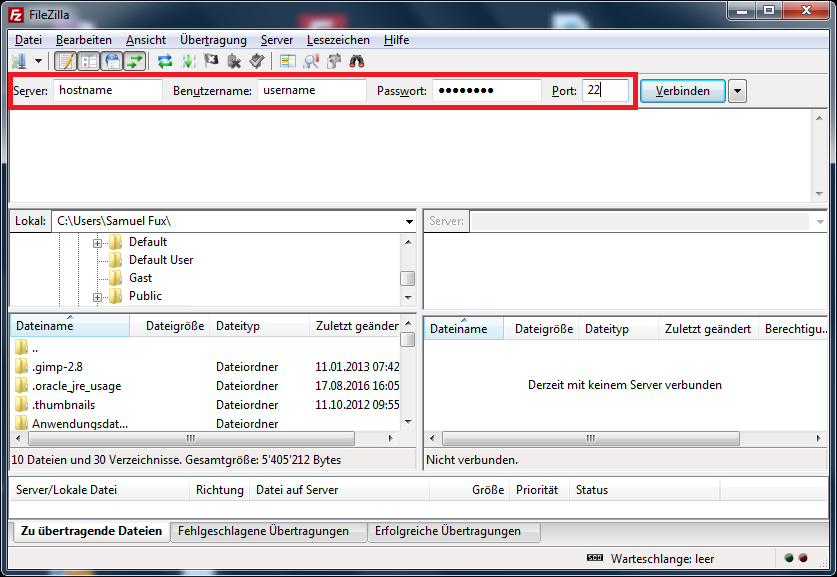
WinSCP provides the user a Windows explorer like user interface with a
split screen that allows to transfer files per drag-and-drop. After
starting your graphical scp/sftp client, you need to specify the
hostname of the cluster that you would like to connect to and then
click on the connect button. After entering your ETH username and
password, you will be connected to the cluster and can transfer files.
WinSCP |
|---|

|
Filezilla |
|---|
|

see :Globus for fast file
transfer
lquota command.
[sfux@eu-login-13-ng ~]$ lquota
+-----------------------------+-------------+------------------+------------------+------------------+
| Storage location: | Quota type: | Used: | Soft quota: | Hard quota: |
+-----------------------------+-------------+------------------+------------------+------------------+
| /cluster/home/sfux | space | 8.85 GB | 17.18 GB | 21.47 GB |
| /cluster/home/sfux | files | 25610 | 160000 | 200000 |
+-----------------------------+-------------+------------------+------------------+------------------+
| /cluster/shadow | space | 4.10 kB | 2.15 GB | 2.15 GB |
| /cluster/shadow | files | 2 | 50000 | 50000 |
+-----------------------------+-------------+------------------+------------------+------------------+
| /cluster/scratch/sfux | space | 237.57 kB | 2.50 TB | 2.70 TB |
| /cluster/scratch/sfux | files | 29 | 1000000 | 1500000 |
+-----------------------------+-------------+------------------+------------------+------------------+
[sfux@eu-login-13-ng ~]$
If you reach 80% of your quota (number of files or storage) in your personal scratch directory, you will be informed via email to clean up.
Shareholders that own storage in /cluster/work or /cluster/project
on Euler or Leonhard can check their quota also by using the
lquota command:
[sfux@eu-login-11-ng ~]$ lquota /cluster/project/sis
+-----------------------------+-------------+------------------+------------------+------------------+
| Storage location: | Quota type: | Used: | Soft quota: | Hard quota: |
+-----------------------------+-------------+------------------+------------------+------------------+
| /cluster/project/sis | space[B] | 6.17 TB | - | 10.41 TB |
| /cluster/project/sis | files | 1155583 | - | 30721113 |
+-----------------------------+-------------+------------------+------------------+------------------+
[sfux@eu-login-11-ng ~]$
[sfux@eu-login-11-ng ~]$ lquota /cluster/work/sis
+-----------------------------+-------------+------------------+------------------+------------------+
| Storage location: | Quota type: | Used: | Soft quota: | Hard quota: |
+-----------------------------+-------------+------------------+------------------+------------------+
| /cluster/work/sis | space | 8.36 TB | 10.00 TB | 11.00 TB |
| /cluster/work/sis | files | 1142478 | 10000000 | 11000000 |
+-----------------------------+-------------+------------------+------------------+------------------+
[sfux@eu-login-11-ng ~]$
The lquota script requires the
path to the top-level directory as parameter.
Every project or work storage share also contains an overview on the current space and inode usage of all users in the share. This information is stored in a hidden file in the top level directory with the name:
/cluster/project/SHARENAME/.SHARENAME_user_data_usage.txt
/cluster/work/SHARENAME/.SHARENAME_user_data_usage.txt
For example for the SIS project share, the quota overview is stored in a
file .sis_user_data_usage.txt
sfux@eu-login-16:~$ ls -l /cluster/project/sis/.sis_user_data_usage.txt
-rw-r----- 1 root T6005 2709 Jan 23 03:07 /cluster/project/sis/.sis_user_data_usage.txt
sfux@eu-login-16:~$
The quota report is updated twice per day.