Storage and data transfer
__NOTOC__
| < Accessing the cluster | Home | Modules and applications > |
|
Once you can log in to the cluster, you can start setting up your
calculation job and you need your data. Therefore, two questions
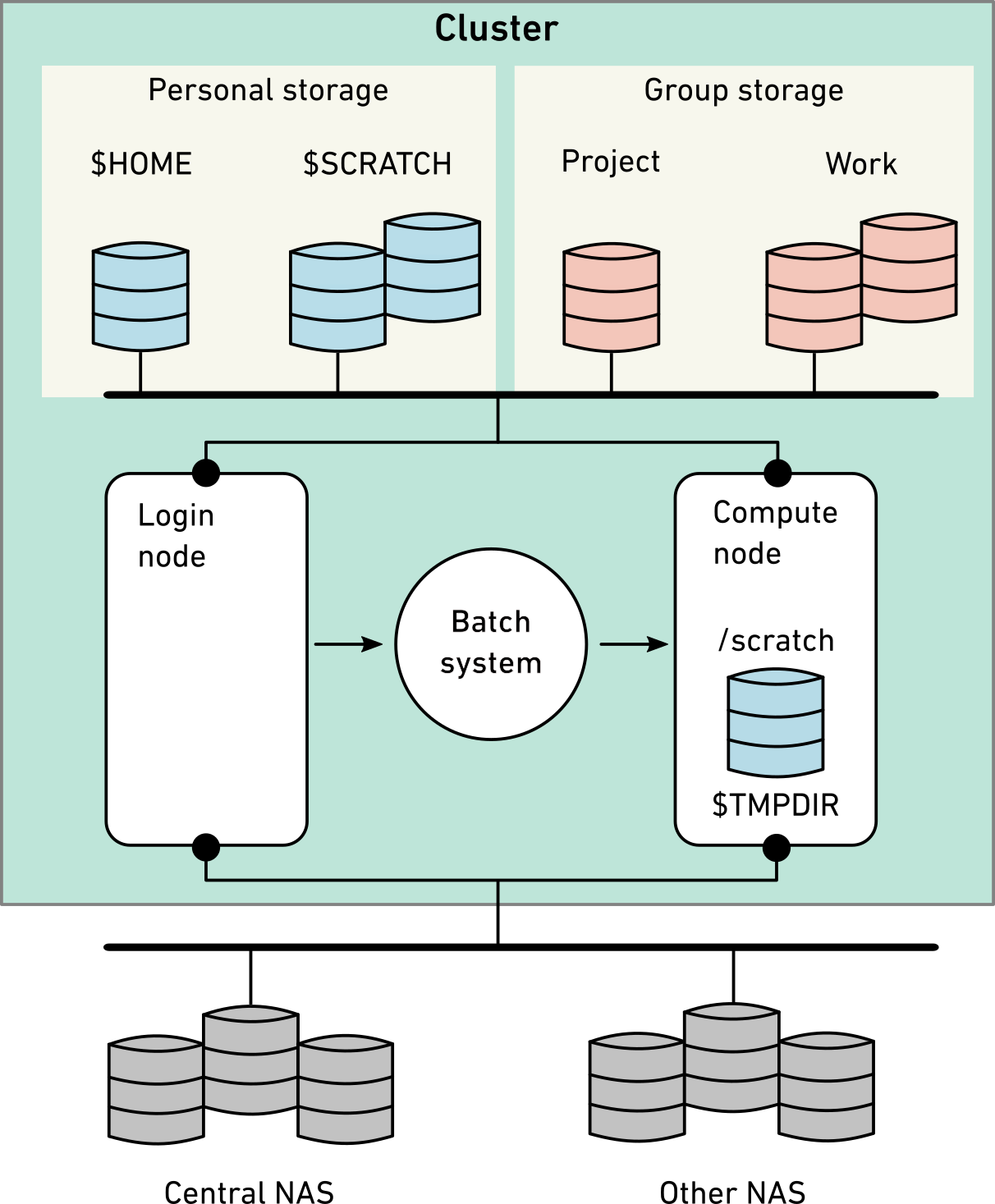
arise: 1. Where to store data? 2. How to transfer data? We describe in detail each storage option in the sections below. However, please keep in ming the following points : - all users, including guest users, have access to $HOME, \(SCRATCH and local scratch (\)TMPDIR) - shareholders can choose to buy into /cluster/work/ and /cluster/project storages - each storage system is different : they are not universal and may be optimised for different operations and/or file sizes. Please read the sections below attentively to use the storage on Euler in an optimal way, and avoid inadvertently slowing down your applications/workflows - $SCRATCH has a 15-day purge without prior warning or possibility of recovery: we had real cases of people loosing critical work because they forgot about it - Please do not install conda environments in $SCRATCH or /cluster/work storages , it will slow down the storage for everyone on the cluster - if you cannot avoid using conda, then conda environments can be installed in $HOME or /cluster/project storage for the shareholders In the following sections, we explain in detail the storage system on the cluster and give examples how to transfer data between your local computer and the cluster. |
Personal storage for all users
$HOME
$ cd $HOME
$ pwd
/cluster/home/username
- $HOME is a safe, long-term storage for critical data (program source, scripts, etc.) and is accessible only by the user (owner). This means other people cannot read its contents.
- There is a disk quota of 16/20 GB and a maximum of 160’000/200’000 files (soft/hard quota). You can check the quota with the command lquota.
- Its content is saved every hour/day using snapshot, which is stored in the hidden .snapshot directory.
### $SCRATCH or Global Scratch {#scratch_or_global_scratch}
$ cd $SCRATCH$ pwd/cluster/scratch/username
- $SCRATCH is a fast, short-term storage for computations running on
the cluster. It is created automatically upon first access (cd
$SCRATCH) and visible (mounted) only when accessed.
- It has strict usage rules (see
$SCRATCH/__USAGE_RULES__
for details) and has no backup.
- Most importantly, on $SCRATCH, any file
older than 15 days will be erased without prior warning or
possibility of recovery !
|
### Local Scratch {#local_scratch} /scratch on each compute node ($TMPDIR) - The local scratch is intended for serial, I/O-intensive applications. Therefore, it has a very short life span. Data are deleted automatically when the job ends. - Scratch space must be requested by the job and has no backup. See how to use local scratch |
Monitor your storage usage
Please use the `lquota` command to track your storage quota. Please note that you have a quota in terms of storage but also file numbers :
$ lquota
+-----------------------+-------------+------------+---------------+---------------+
| Storage location: | Quota type: | Used: | Soft quota: | Hard quota: |
+-----------------------+-------------+------------+---------------+---------------+
| /cluster/home/sfux | space | 8.85 GB | 17.18 GB | 21.47 GB |
| /cluster/home/sfux | files | 25610 | 160000 | 200000 |
+-----------------------+-------------+------------+---------------+---------------+
| /cluster/shadow | space | 4.10 kB | 2.15 GB | 2.15 GB |
| /cluster/shadow | files | 2 | 50000 | 50000 |
+-----------------------+-------------+------------+---------------+---------------+
| /cluster/scratch/sfux | space | 237.57 kB | 2.50 TB | 2.70 TB |
| /cluster/scratch/sfux | files | 29 | 1000000 | 1500000 |
+-----------------------+-------------+------------+---------------+---------------+
If exceeded for more than five days, the soft quota becomes the hard quota and no file creation or file transfer will be possible. Then, to be able to use the storage again, you would need to decrease the quota below the soft quota limit.
Group storage for shareholders
Shareholders can buy the space on Project and Work as much as they need, and manage access rights. Quota can be checked with lquota. The content is backed up multiple times per week.
### Project {#project}
$ cd /cluster/project/groupname
Similar to $HOME, but for groups, it is a safe, long-term storage for
critical data.
|
### Work {#work}
$ cd /cluster/work/groupname
Similar to global scratch, but without purge, it is a fast, short-or
medium-term storage for large computations.
The folder is visible only when accessed.
|
External Storage
| ### Central NAS/CDS {#central_nascds} Groups who have purchased storage on the central NAS/CDS of ETH provided by ID Systemdienste can access it on our clusters. | ### Other NAS {#other_nas} Groups who are operating their own NAS can export a shared file system via NFS to Euler. The user and group ID's on the NAS needs to be consistent with ETH user names and groups. |
The NAS share needs to be mountable via NFSv3 (shares that only support
CIFS cannot be mounted on the HPC clusters), and exported to the subnet
of our HPC clusters. The NAS is then mounted automatically on our
clusters under
/nfs/servername/sharename
|
File system comparison
| File system | Life span | Max size | Snapshots | Backup | Small files | Large files |
|---|---|---|---|---|---|---|
| $HOME | permanent | 16 GB | ✓ | ✓ | ✓ | o |
| $SCRATCH | 2 weeks | 2.5 TB | - | - | o | ✓✓ |
| /cluster/project | 4 years | flexible | optional | ✓ | ✓ | ✓ |
| /cluster/work | 4 years | flexible | - | ✓ | o | ✓✓ |
| Local /scratch | duration of job | 800 GB | - | - | ✓✓ | o |
| Central NAS | flexible | flexible | ✓ | ✓ | ✓ | ✓ |
Retention time
- Snapshots: up to 7 days
- Backup: up to 90 days
Automatic monitoring
A monitoring tool is running every night and checking the quota and usage of all storage. You will receive an email notification when you are close to reach the quota (at most once per week).
If you wish to disable this service, you can run
storage-alerts disable.
Data transfer with command line tools
### Using scp command {#using_scp_command}
All scp commands should be run on your local workstation.
Upload dummy_file from your workstation to your home directory on Euler
$ scp dummy_file username@euler.ethz.ch:
Download dummy_file from Euler to the current directory on your
workstation
$ scp username@euler.ethz.ch:dummy_file .
Copy a directory to Euler
$ scp -r dummy_dir username@euler.ethz.ch:
|
### Example: upload a directory with rsync {#example_upload_a_directory_with_rsync}
Create two files in the dummy directory and use rsync to transfer the
folder
$ mkdir dummy_dir$ touch dummy_dir/dummy_file1 dummy_dir/dummy_file2$ rsync -av dummy_dir username@euler.ethz.ch:dummy_dir
|
Data transfer with graphical tools
|
Linux |
macOS |
Windows |
|---|---|---|
|
FileZilla |
FileZilla |
WinSCP |
style="text-align: left" | Table: Graphical file transfer programs
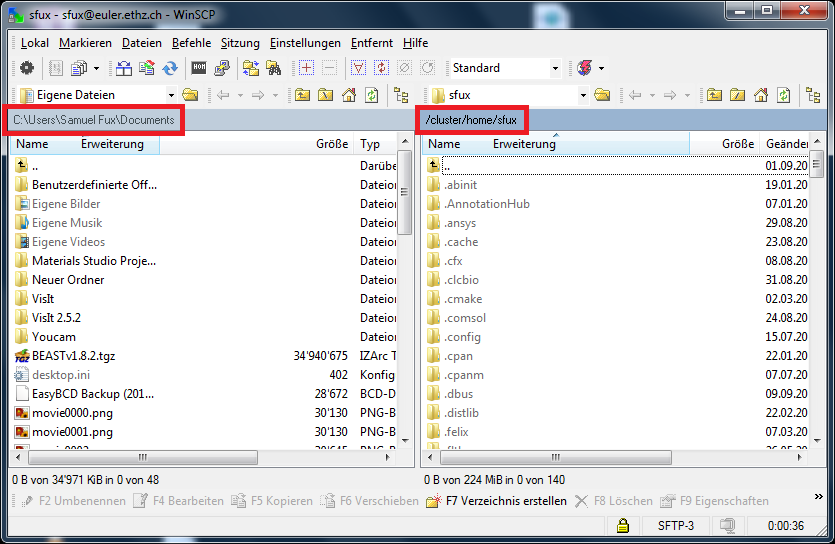
WinSCP

|
|
Globus for fst file transfer

see :Globus for fast file
transfer
Further reading
- User guide: Storage systems
- Unified quota wrapper
- Too much space is used by your output files
- Best practices guide for Lustre file system
| < Accessing the cluster | Home | Modules and applications > |