ParaView Client Server
Introduction
ParaView is an open-source multiple-platform application for interactive, scientific visualization. It has a client–server architecture to facilitate remote visualization of datasets.
To simplify its usage, ParaView can be run in a client-server mode where the user runs the client on his/her own machine (GUI) and connects to the server in order to access the data. Sending back all the data is too expensive, so the server does not only provide the data back to the user but also perform some off-screen rendering. In this documentation, we are explaining how to achieve such a setup.
Setup
This setup requires to have paraview installed on a personal computer with a version matching the one available on the Euler. Currently versions 5.9.1, 5.12.1 and 6.0.0 are installed.
You can download paraview from this website. You will need to download the Euler configuration script
(right click -> save as -> remove the extension .html or
curlhttps://scicomp.ethz.ch/public/paraview/euler.pvsc-o euler.pvsc
curlhttps://scicomp.ethz.ch/public/paraview/euler_5121.pvsc-o euler_5121.pvsc
curlhttps://scicomp.ethz.ch/public/paraview/euler_600.pvsc-o euler_600.pvsc
and load it in ParaView: Connect (see picture) -> Load Servers. If everything works correctly, you will have "Euler" and "Euler for Windows" in the list of servers.
For Linux and Mac users, the script requires the xterm package to be installed
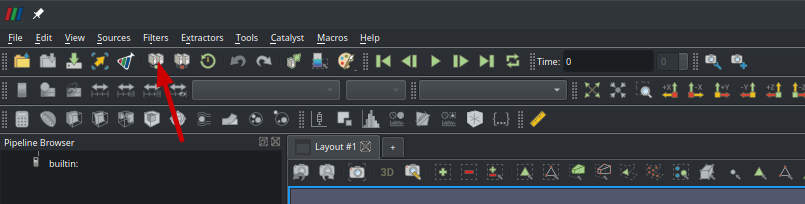
Connecting
Click on the connect button (see
Setup for more details), pick
the correct server configuration ("Euler" or "Euler for Windows") and
confirm with the "Connect button" at the bottom of the windows. You
should get the following window: 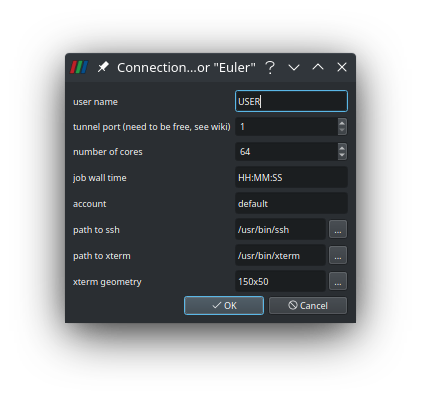
You will need to set your user name, a port number, update the required number of cores (maximum one node so currently 128) and how much time you want to have the server. For the port number, it is important to have a unique value otherwise the script might fail when creating the port forwarding as someone else is already using it. In order to pick a port, we recommend using the following command on the server:
python3 -c 'import socket; s=socket.socket(); s.bind(("",0)); print(s.getsockname()[1]); s.close()'
For MacOS, you will need to set the path to xterm (e.g.
/usr/X11/bin/xterm)
For windows, set the path to SSH to plink.exe (we could only get the setup running with PuTTY) and the path to xterm to cmd.exe. Please note that for both, you need to specify the absolute path.
Once the configuration is done, the script will submit a job to the slurm queue and you will need to wait a bit until the job and the server start (about 20s for the server). While waiting for the job to start, you can use the new window to probe the status of the job. Please do not close the terminal as it would kill the ssh tunnel.
Technical Details
The configuration script consists simply in a ssh tunnel and execution of a script on a login node. This script will ensure that the paraview version matches between the client and the server and create and submit a slurm job. This job will first create a ssh tunnel between the compute node and the login node used before in order to match the tunnels.
Troubleshooting
First step
In any case, it is important to check if you have a recent configuration of the server. In order to update it, you will need to redownload the configuration file given in Setup and load it as before.
Known issues
- When openning the "Euler" or "Euler for Windows", you need to specify a port. We recommend to use a port number >10000 as the port needs to be free
- Users might need to adapt the path to xterm as the default setting
/usr/bin/xtermis not correct for Mac users - Windows users need to adapt the path for both, ssh and xterm. Please
find below a solution that worked in our test:
- For SSH, we used a putty installation in the test and set the
path for SSH to the plink executable:
C:\Apps\putty\plink.exe - For xterm, set the path to
C:\WINDOWS\system32\cmd.exe
- For SSH, we used a putty installation in the test and set the
path for SSH to the plink executable:
- For some .xmf files, paraview 5.12.3 freezes after opening the file
and clicking on
applywhen using more than 1 core. This is a bug in paraview (https://gitlab.kitware.com/paraview/paraview/-/issues/22868) that is fixed in version 6.0.0. If you encounter this issue, then please switch to version 6.0.0